
Raspberry Pi 5 K3S Setup using Ansible
 I had a few thoughts and ideas in my head as of recently:
- I wanted to learn Ansible, since a lot of Linux system engineering roles require this skill and I already heard a few interesting things about it.
- I wanted to play around with the new Raspberry Pi 5 and see what it’s capable of.
- I wanted to build my own Kubernetes cluster at home.
So I combined all this into this project.
The full project repository is available on GitHub.
Physical Infrastructure
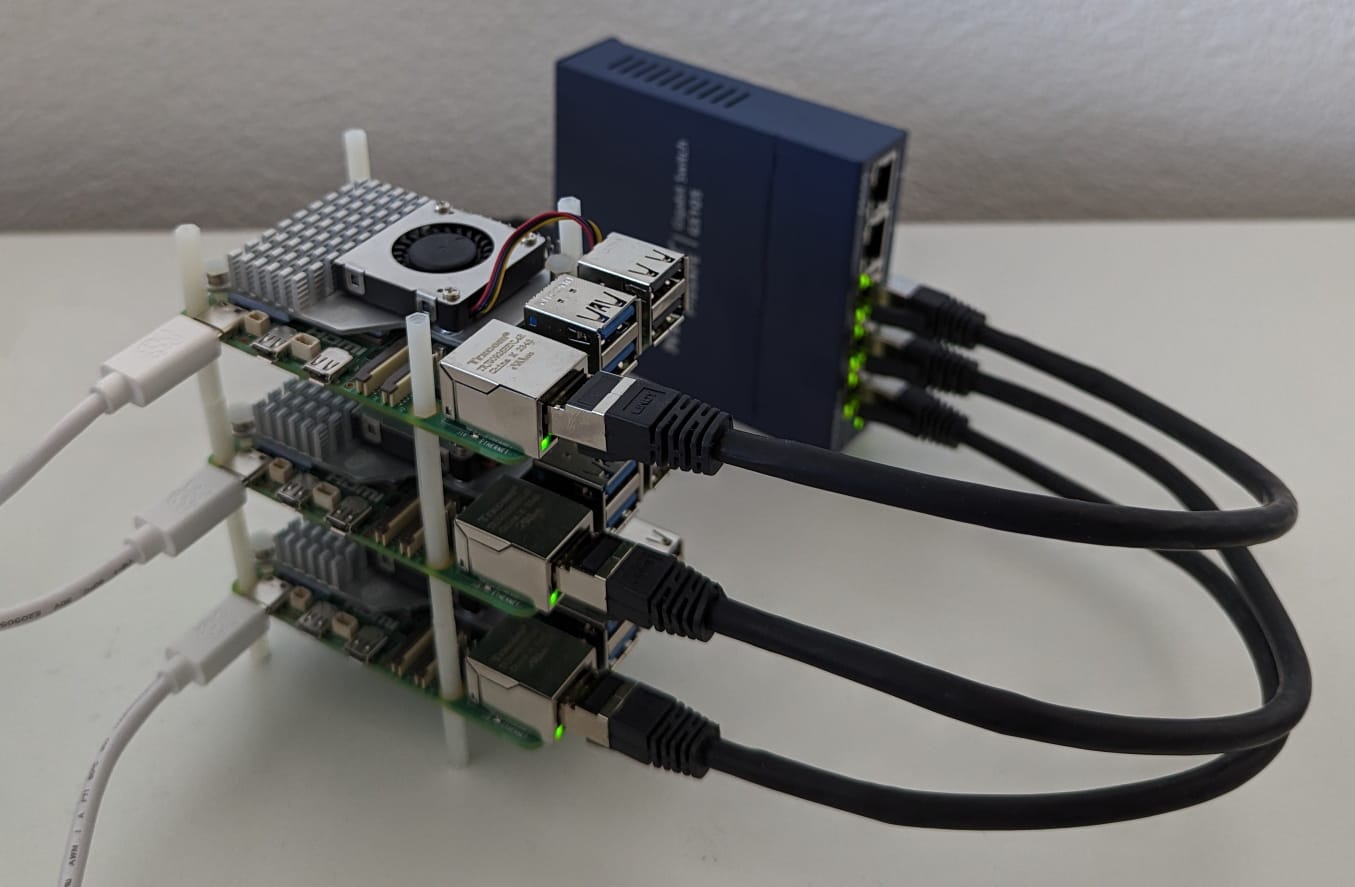
See the whole list of bought equipment below. I bought three Raspberry Pi 5s with 8GB of RAM because they were in stock on my goto webshop and because why not? Also the additional RAM certainly helps with container density on the cluster. My idea for networking is to have the Pis connect to my home Wi-Fi for downloads and outward facing interactions with the cluster and have an additional switch between the nodes for inter-cluster communication. Since the Pi 5 only has a Gigabit-Ethernet port a simple Gigabit unmanaged switch sufficed.
Equipment List
- 3x Raspberry Pi New Raspberry Pi 5 / 8GB
- 3x Raspberry Pi Official fan/ heat sink for Raspberry Pi 5
- 3x Raspberry Pi Official Raspberry Pi 5 power supply, 27W USB-C
- 3x Samsung SD MicroSD Card SDXC PRO Plus Reader (microSDXC, 128 GB, U3, UHS-I)
- 3x Lindy Netzwerkkabel (S/FTP, CAT7, 0.30 m)
- 1x Netgear GS105GE (5 Ports)
- 1x DFRobot Sechskant M2 Distanzbolzen Abstandhalter Nylon 260 Stück
Operating System
I flashed all three SD cards using the Raspberry Pi Imager with Raspberry Pi OS Lite (Bookworm). To be able to immediately connect to the Pis after starting them, I added my home Wi-Fi and my SSH public key directly in the Imager. I also gave the Pis the hostnames dione.local, rhea.local and titan.local.
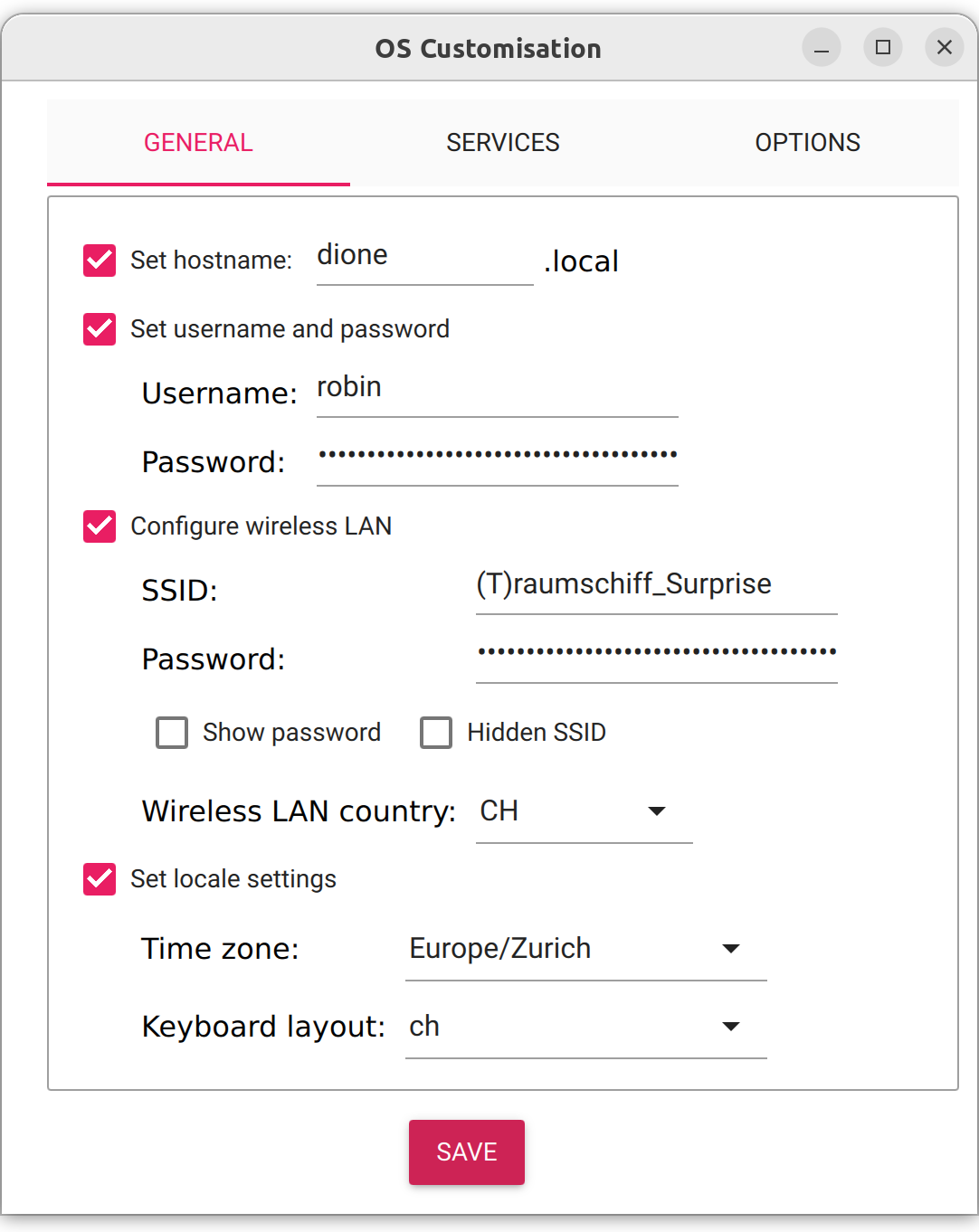
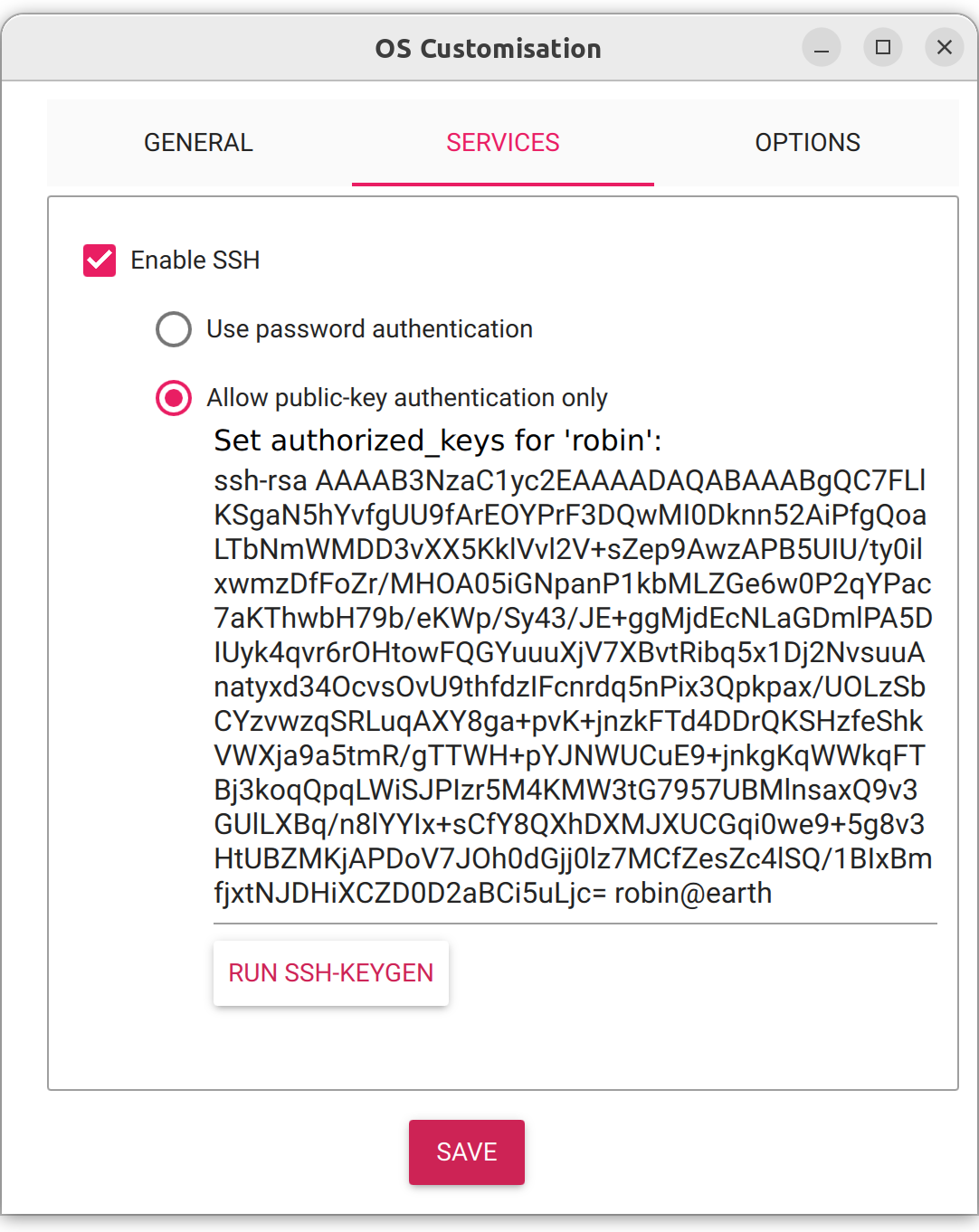
After inserting the SD cards and booting the Pis, I had troubles connecting to them. So sadly I still had to pull out the micro-HDMI cable and troubleshoot locally. Turns out my configurations made in the Imager did not apply at all. After upgrading the Imager Software to the newest release 1.8.5 and reflashing the SD cards, the changes were applied and the Pis were available on the local network.
In the interface of my DHCP server I made the assigned IP addresses into reservations so the nodes never change their IP.

Ansible Setup
In my project directory I created an Ansible inventory file hosts.ini containing my three nodes and the connection settings:
[cluster]
dione.local
titan.local
rhea.local

[server]
dione.local

[agent]
rhea.local
titan.local

[cluster:vars]
ansible_user=robin
ansible_ssh_private_key_file=~/.ssh/robin
iface=eth0
server=10.10.10.10
I also added an ansible.cfg file, which points at my inventory, so I don’t always have to specify the inventory:
[defaults]
inventory = hosts.ini
To test if the nodes could be managed by Ansible I ran some commands directly on the command line:
$ ansible cluster -a "free -h"
titan.local | CHANGED | rc=0 >>
               total        used        free      shared  buff/cache   available
Mem:           7.9Gi       342Mi       6.8Gi       5.9Mi       838Mi       7.5Gi
Swap:           99Mi          0B        99Mi
dione.local | CHANGED | rc=0 >>
               total        used        free      shared  buff/cache   available
Mem:           7.9Gi       806Mi       5.6Gi       7.9Mi       1.6Gi       7.1Gi
Swap:           99Mi          0B        99Mi
rhea.local | CHANGED | rc=0 >>
               total        used        free      shared  buff/cache   available
Mem:           7.9Gi       343Mi       6.8Gi       5.8Mi       839Mi       7.5Gi
Swap:           99Mi          0B        99Mi
Testing VMs
Since reflashing SD cards everytime I screw something up is not fun, I wanted to build a testing environment in virtual machines. I did this using Vagrant, which lets me build and destroy VMs in a matter of seconds.
I created a Vagrantfile with the following content:
# -*- mode: ruby -*-
# vi: set ft=ruby :

Vagrant.configure("2") do |config|
    config.vm.box = "debian/bookworm64"
    config.ssh.insert_key = false
    config.vm.synced_folder ".", "/vagrant", disabled: true
    config.vm.provider :libvirt do |libvirt|
        libvirt.memory = 2048
        libvirt.cpus = 2
    end

    config.vm.define "server" do |server|
        server.vm.network "private_network", ip: "192.168.42.42"
        server.vm.hostname = "server.local"
    end

    config.vm.define "agent" do |agent|
        agent.vm.network "private_network", ip: "192.168.42.43"
        agent.vm.hostname = "agent.local"
    end

  end
Since Raspberry Pi OS is based on Debian I used the debian/bookworm64 box. I create only two VMs, one for the control-plane and an agent, because the agents will be set up identically. For testing one agent suffices.
To start the VMs I used vagrant up and everytime I wanted to to test on a clean slate again I ran vagrant destroy and then vagrant up again.
The VMs were also added to the hosts.ini file and I tested if Ansible could contact them:
[testing]
192.168.42.42
192.168.42.43

[testing:vars]
ansible_user=vagrant
ansible_ssh_private_key_file=~/.vagrant.d/insecure_private_key
iface=eth1
server=192.168.42.42
$ ansible testing -a "free -h"
192.168.42.43 | CHANGED | rc=0 >>
               total        used        free      shared  buff/cache   available
Mem:           1.9Gi       484Mi       491Mi       2.5Mi       1.1Gi       1.4Gi
Swap:             0B          0B          0B
192.168.42.42 | CHANGED | rc=0 >>
               total        used        free      shared  buff/cache   available
Mem:           1.9Gi       849Mi        75Mi       2.5Mi       1.2Gi       1.1Gi
Swap:             0B          0B          0B
K3S Setup
K3S is a lightweight Kubernetes distribution made for Edge and IoT devices, which is perfect for my Pi Cluster. It also happens to be pretty easy to install, since all components like the CRI and CNI are contained in one binary.
In the beginning I added all necessary tasks for the deployment in one playbook. Later on I tried to organize it better.
Prerequisites
Raspberry Pi OS comes with cgroups disabled by default. This needs to be enabled to run K3S. To do this I had to append some settings to /boot/cmdline.txt. I also added a handler, which reboots the nodes.
- name: Enable cgroups
  replace:
    path: /boot/cmdline.txt
    regexp: "CH$"
    replace: "CH cgroup_memory=1 cgroup_enable=memory"
    backup: true
  notify: Reboot
- name: Reboot
  reboot:
    msg: "Beep Boop Me Reboot"
For the inter-cluster communication I also had to configure the ethernet interface on the Pis.
- name: Setting eth0 interface IP address
  community.general.nmcli:
    type: ethernet
    conn_name: ""
    ip4: "/24"
    state: present
For this I added two variables: iface and ip. iface I added in the hosts.ini file under [cluster:vars], since this is the same for all nodes and for the ip variable I used the host_vars system. In a new folder host_vars I added a file for each node, containing the variable definition.
host_vars/
├── dione.local
├── rhea.local
└── titan.local
$ cat host_vars/dione.local
---
ip: 10.10.10.10
The K3S script can be downloaded from get.k3s-io. This is also done on each node.
- name: Download k3s install script
  get_url:
    url: https://get.k3s.io/
    dest: /usr/local/bin/k3s-install.sh
    mode: '0755'
Server Setup
On the server I ran the script with the --token parameter. This allowed me to set my own token and not have to look up the auto-generated one. For security reasons I encrypted the file containing the variable agent_token using Ansible Vault. The parameters --node-external-ip and --flannel-iface are used, to specify that the inter-cluster communication should happen over my wired network.
- name: Run k3s script on server
  command: /usr/local/bin/k3s-install.sh --token  --node-external-ip  --flannel-iface
$ ansible-vault encrypt vars/agent_token.yml
To be able to run the kubectl cli as a regular user I also had to copy the kubeconfig into the users home directory and add the environment variable KUBECONFIG, which points to the config file.
- name: Create .kube folder in  user home
  file:
    path: "~/.kube"
    state: directory
    owner: ""
    group: ""
    mode: '0700'

- name: Copy kubeconfig to  home
  copy:
    src: /etc/rancher/k3s/k3s.yaml
    remote_src: true
    dest: "~/.kube/config"
    owner: ""
    group: ""
    mode: '0600'

- name: Set KUBECONFIG environment variable for
  lineinfile:
    dest: "~/.bashrc"
    regexp: '^export KUBECONFIG='
    line: 'export KUBECONFIG=~/.kube/config'
    state: present
Agent Setup
The agents run the same setup script as the server, but with the addition of the --server option. This is an additional variable I configured in the hosts.ini file.
- name: Run k3s script on agent
  command: /usr/local/bin/k3s-install.sh agent --token  --server https://:6443 --node-external-ip  --flannel-iface
Organisation
Initially I had all tasks in a single playbook and since some tasks were only meant to run on either the server or the client, I had to use the when: inventory_hostname in groups['xxx'] directive quite a lot. I extracted the different tasks into seperate files to make the primary playbook more readable.
See the playbook below:
---
- hosts: testing
  become: yes

  vars_files:
    - vars/agent_token.yml

  handlers:
    - import_tasks: "handlers/handlers.yml"

  pre_tasks:
  - name: Update apt cache
    apt: update_cache=yes cache_valid_time=3600

  - name: Raspberry Pi cluster prerequisites
    import_tasks: "tasks/raspberry.yml"
    when: inventory_hostname in groups['cluster']

  tasks:
  - name: Common tasks for server and agent
    import_tasks: "tasks/common.yml"

  - name: Server tasks
    import_tasks: "tasks/server.yml"
    when: inventory_hostname in groups['server']

  - name: Agent tasks
    import_tasks: "tasks/agent.yml"
    when: inventory_hostname in groups['agent']
The final folder structure looked something like this:
├── ansible.cfg
├── handlers
│   └── handlers.yml
├── hosts.ini
├── host_vars
│   ├── 192.168.42.42
│   ├── 192.168.42.43
│   ├── dione.local
│   ├── rhea.local
│   └── titan.local
├── playbook.yaml
├── tasks
│   ├── agent.yml
│   ├── common.yml
│   ├── raspberry.yml
│   └── server.yml
├── Vagrantfile
└── vars
    └── agent_token.yml
Reflection
This project was made using knowledge aquired from Jeff Geerlings Book Ansible for Devops and the K3S Documentation. I also found a Repository, which deploys K3s using Ansible. However, I used this ressource only sparingly since I wanted to create the playbook from scratch to learn as much as possible. Overall this wasn’t the hardest thing to automate with Ansible, as there aren’t that many steps to the deployment. Learning how to use Vagrant for testing was pretty cool and I think I’ll be able to use this knowledge in the future. I think my playbook organization is not up to standard yet, because it doesn’t utilize roles and the when condition seems kind of janky. However, it does the job and is manageable enough.
The full project repository is available on GitHub.